Everything in VisualDashboard is configured through a browser-based admin interface — no code, no SQL, no deployment. Connect a data source, define your hierarchy, configure fields and rules. Changes take effect immediately for all users.
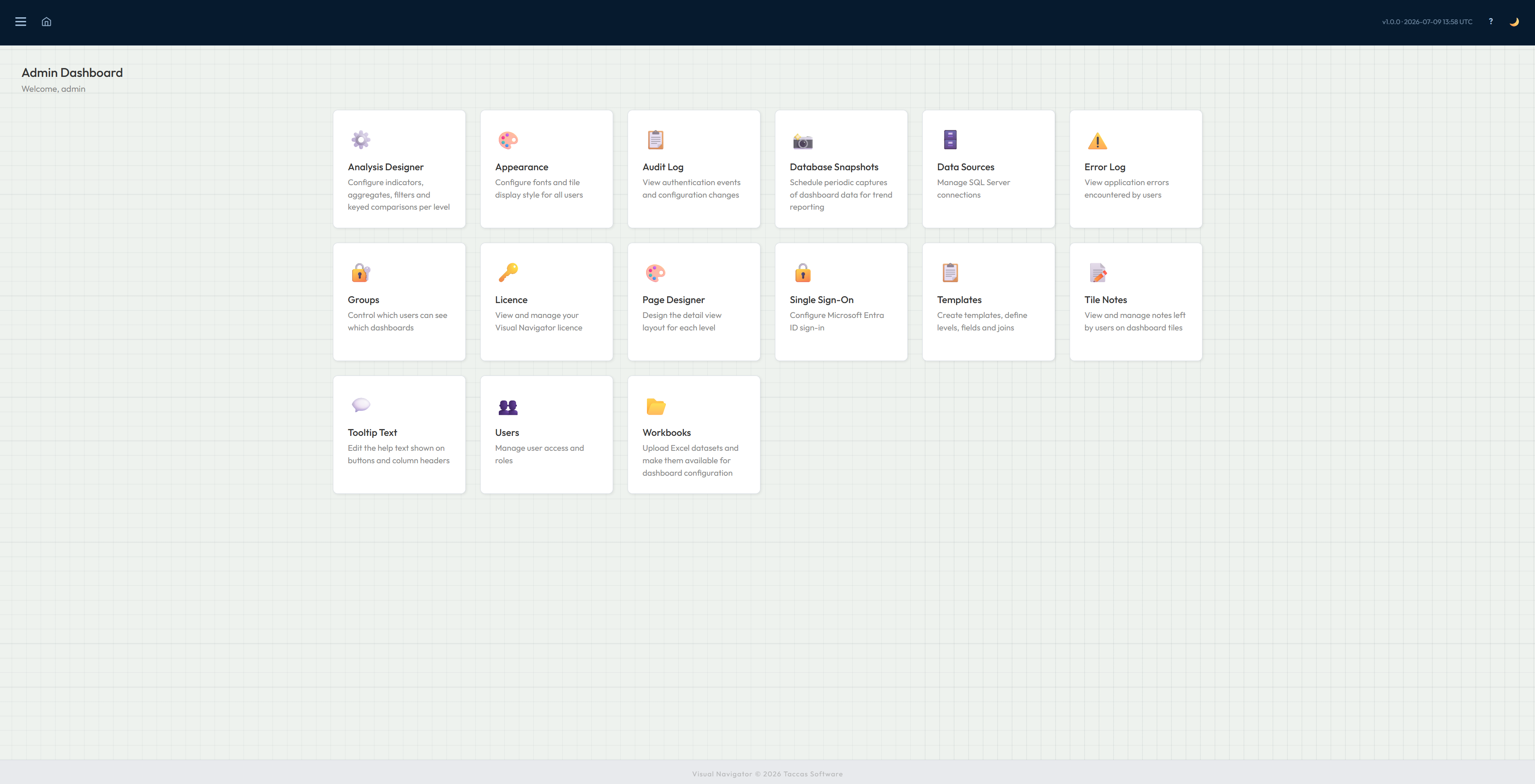
The Admin Dashboard is the starting point for all configuration. Each card links to a specific area — data sources, templates, analysis designer, users, groups, and more. Administrators see only what they need.
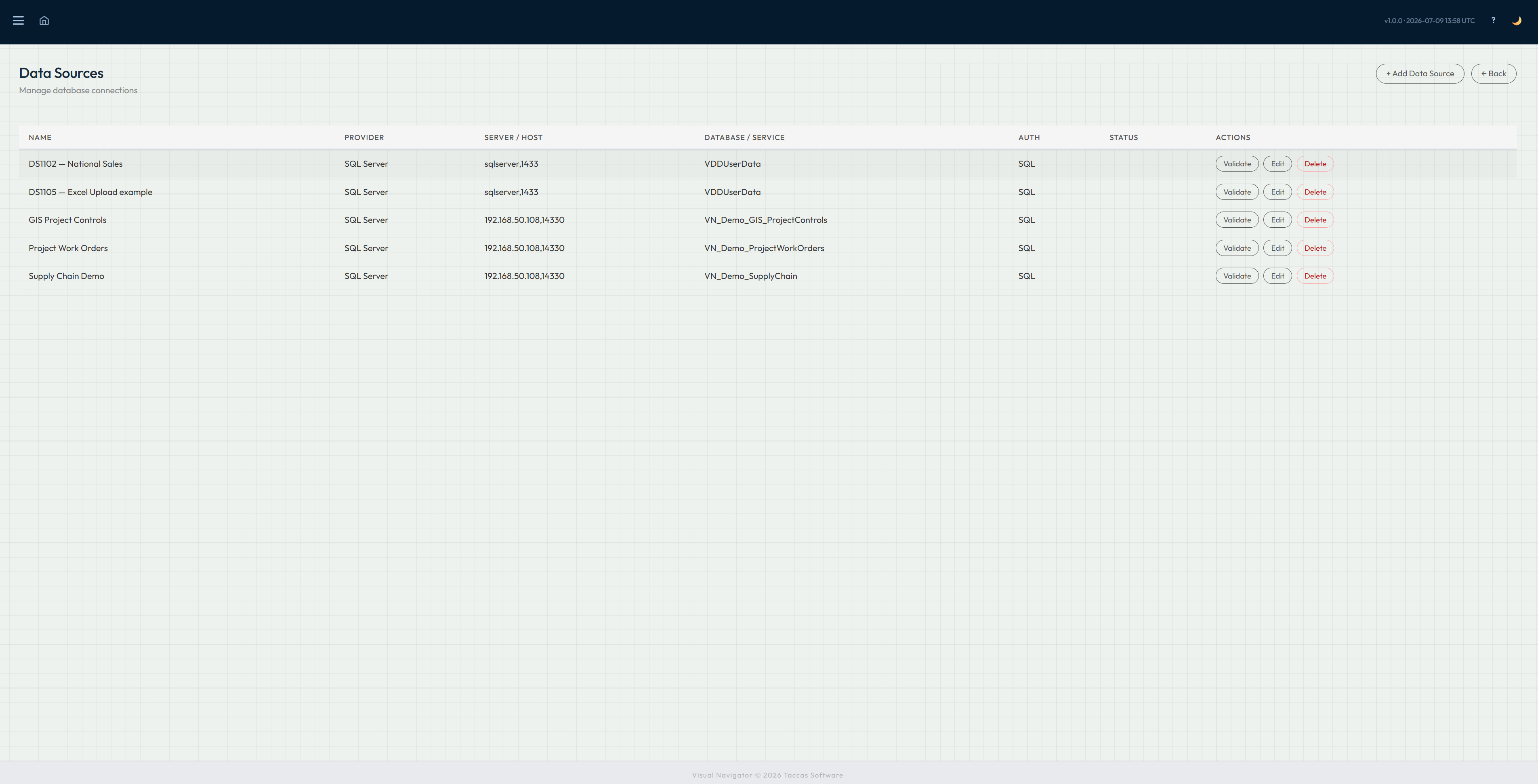
Add and manage SQL Server connections through the Data Sources page. Windows Authentication and SQL Authentication are both supported. Connection strings are AES-256 encrypted and stored securely — never in source code or config files.
A template is a configured dashboard — it defines which data source to use, how many levels the hierarchy has, and what each level looks like. The Levels page shows the complete hierarchy at a glance, with counts of configured fields, joins, and side structures per level.
For each level, administrators choose which fields appear on tiles, in the hover tooltip, and in list view — independently. Fields are imported directly from the database schema with one click, then toggled on or off per display location.
The Page Designer lets administrators configure the detail view layout for every level across all templates. Each level can have multiple sections, and each section can have multiple fields arranged in rows with percentage-based column widths. A live layout preview updates as you configure.
The Analysis Designer is where administrators configure everything that drives the intelligent behaviour of the dashboard — the colour indicators, rollup aggregates, field filters, and condition-based alert rules.
Any boolean field in your database can become a colour-coded indicator bar on the left edge of each tile. Administrators configure which fields, what colour, and the priority order. Up to four indicators appear as proportional segments on the tile edge.
Aggregates calculate SUM or AVG values from child records and display them on parent tiles. A single aggregate can be set as the progress fill — driving the glass-of-water visual effect on tiles. Aggregate values are also available for use in analysis checks.
Analysis rules define the conditions that trigger alert dots on tiles. Each rule can have multiple checks — alert if any fail or only if all fail. The Edit Analysis page gives full control over what to compare, what condition triggers the alert, and how it appears on the dashboard and in reports.
A contract is worth $1.2 million. VisualDashboard sums all PO line values against it. At 80% spend an amber warning appears. At 100% it turns red. Configured in a few clicks — no SQL, no code, no schema changes.
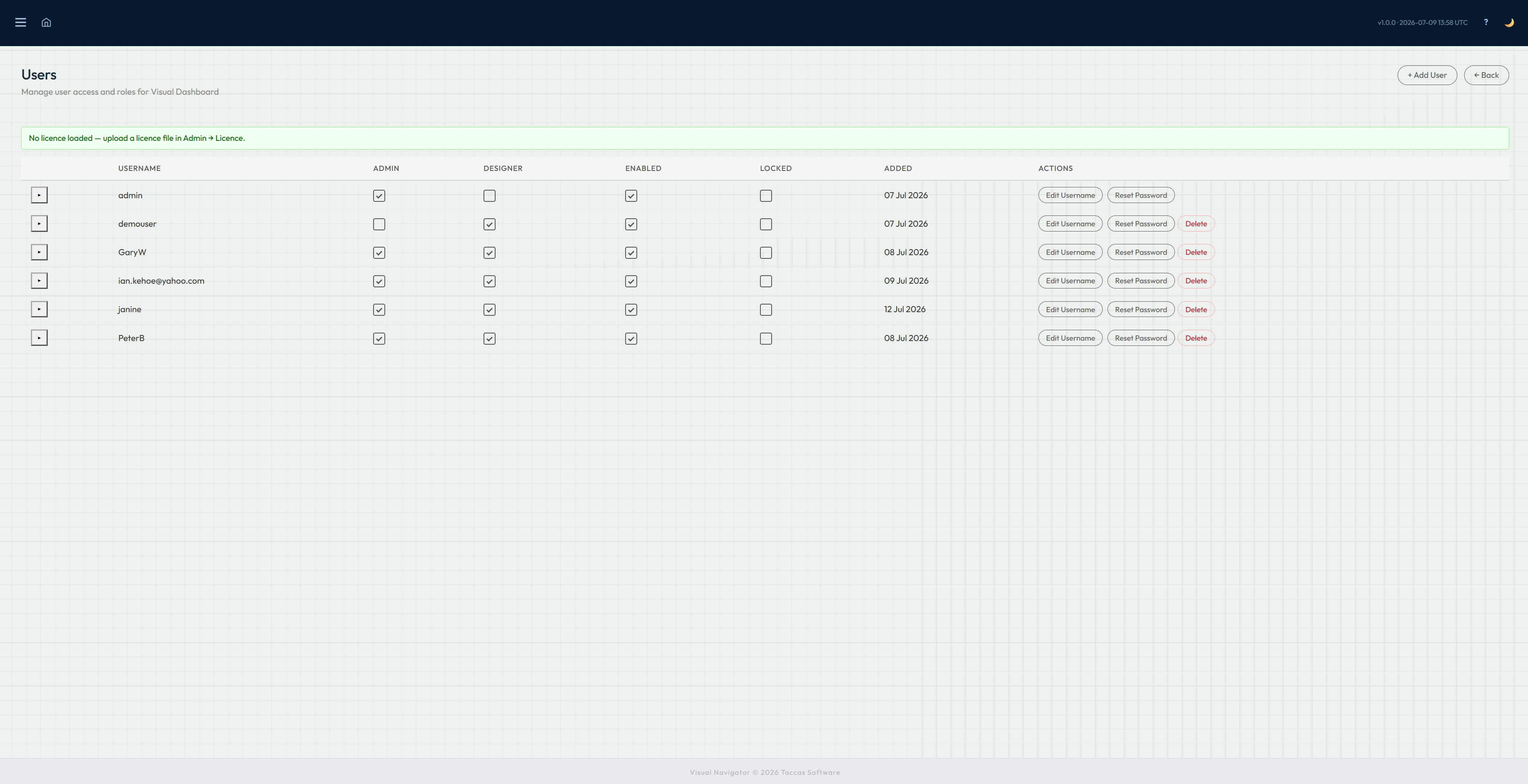
Administrators manage users and groups through simple list interfaces. Roles are set with inline checkboxes. Groups control which templates each user can see.
Users
Manage user accounts with inline role checkboxes. The Admin and Power User columns are toggled directly in the list. Locked accounts are flagged and can be unlocked by an administrator. Expand any row to see which groups the user belongs to.
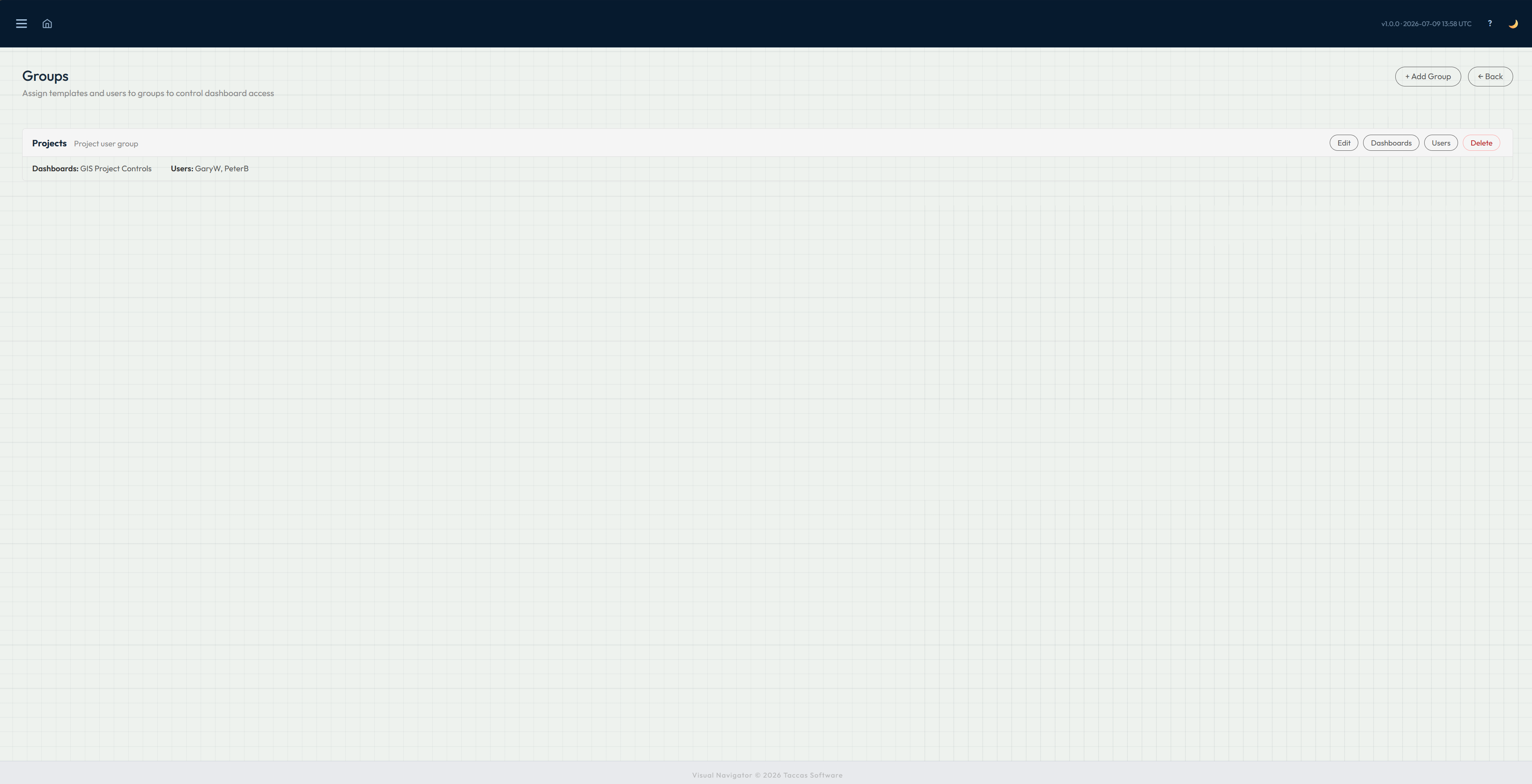
Groups
Groups link users to templates. A user in a group sees the templates assigned to that group. Administrators can assign multiple templates and multiple users to each group. The groups list shows current assignments inline.
The Appearance page lets administrators configure the font and progress bar display style for all users across the organisation. A live preview updates as settings are changed before saving.
Contact Taccas Software to discuss how VisualDashboard can be configured for your data and your organisation.
Contact Taccas